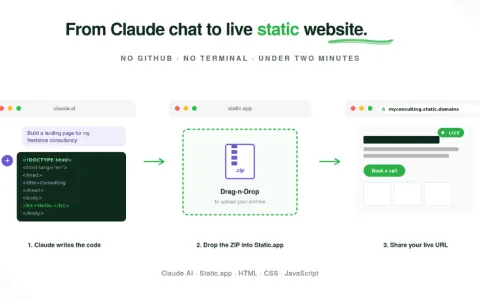
Claude made you something good in a chat: a calculator, a landing page, a little game, a dashboard for your team. It lives in the artifact panel, and now you want it somewhere more permanent. A real web address, maybe your own domain, a contact form that works, and a page that doesn’t carry Claude’s interface around it.
Short answer: host it on Static.app. Paste the artifact’s share link into its Import from URL box, or download the artifact as an HTML file and upload it. Either way you get a live HTTPS website in a couple of minutes, with no git, no terminal, and no build step.
This guide covers both routes, which artifacts survive the move, and the fixes for the problems people hit most often. If Claude gave you a whole folder of files instead of a single artifact, our guide to hosting a Claude-generated website covers the ZIP route step by step. If you built an app with a build step in Claude Code, read where to host Claude apps instead.
Why Not Just Use Claude’s Share Link?
You can, and for passing something to a friend it’s fine. Every artifact starts private, and the Share menu lets you set it to Anyone with the link. Anthropic’s sharing guide says most link-shared artifacts open without a Claude account. Artifacts made in a chat before September 16, 2026 are now called legacy artifacts, and they still have the older Publish button.
But a share link is a link to Claude, not a website you own. Anthropic’s sharing settings describe no custom domain, no form handling and no visitor analytics. On Team and Enterprise plans, sharing stays inside your organization unless an owner turns on external sharing. When the thing you built is meant for customers, clients or the public, you want it on a host.
| Claude share link | Static.app | |
|---|---|---|
| Address | A Claude link | Free subdomain or your own domain |
| Who can open it | Depends on your plan and sharing settings | Anyone, or only people with a password |
| Contact forms | No | Yes, with one HTML attribute |
| Visitor analytics | No | Yes, built in |
| Edit the code later | Ask Claude, then share again | Browser code editor, or re-upload |
First, Check That Your Artifact Will Work Outside Claude
Inside Claude, an artifact runs in a sandbox that can do things a normal web page can’t. Once it is a plain website, it has only what a browser offers. Check which kind you have before you move it:
| Artifact type | Works on Static.app? |
|---|---|
| HTML, CSS and JavaScript that runs in the browser (landing pages, calculators, quizzes, games, timers) | Yes, as is |
| React component | Yes, after you ask Claude for a self-contained HTML version (see below) |
| Uses Claude’s AI inside the artifact (a chatbot, a “generate” button) | No. Those calls run through each viewer’s own Claude account |
| Saves data between visits with artifact storage | The page loads, but the saved data stays in Claude |
| A Claude Doc | No. Export it to PDF or Word instead |
| Needs a server or database | Not by itself. See the apps guide for options |
Anthropic’s artifacts help page explains the AI and storage features. Both depend on Claude, which is why they don’t carry over.
Turning a React Artifact into Plain HTML
A React artifact is usually a JSX component, not a page a browser can open. Ask Claude to convert it:
Convert this artifact into a single self-contained index.html file.
Inline all the JavaScript and CSS, load any libraries from a CDN,
and make sure it runs when opened directly in a browser.
Save the result, open it in your browser, and check that it behaves like the artifact did. Then use Method 2 below.
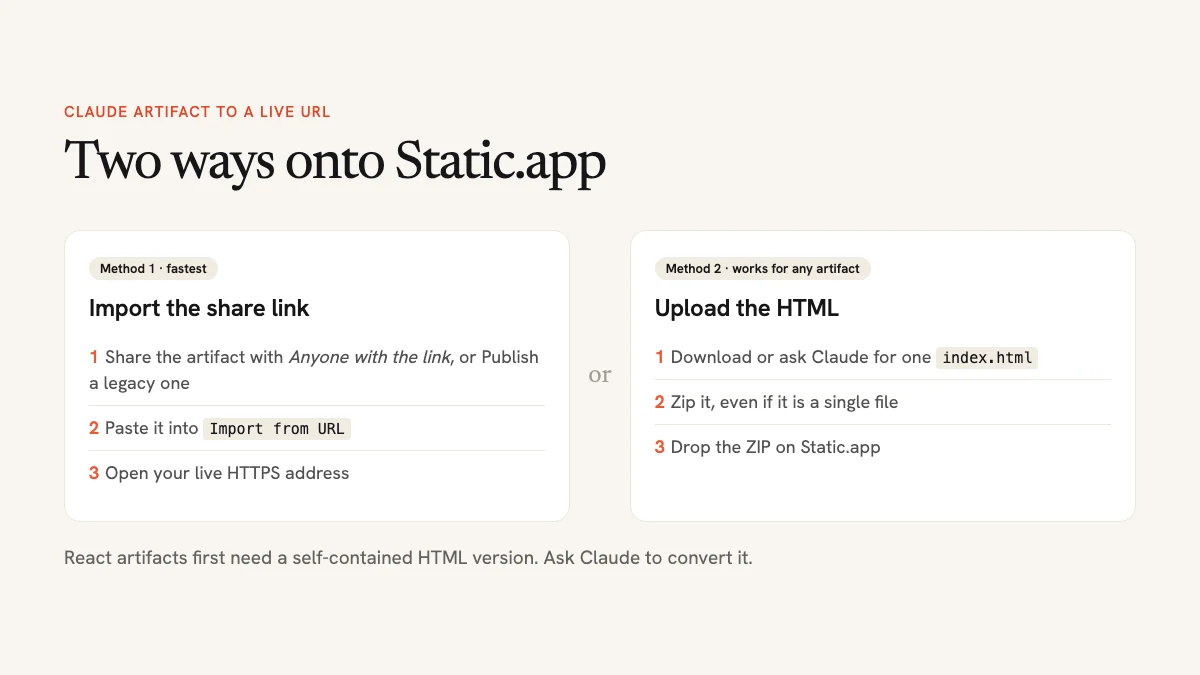
Method 1: Import the Artifact from Its Link
This is the fastest route, with no files to download. The importer asks for a public link in the current claude.ai/artifact/… format, and Static.app says older claude.site links work too. If your link doesn’t import, skip to Method 2, which works with any artifact.
Step 1: Get a Public Link from Claude
Open the artifact in Claude. For a current artifact, click Share and choose Anyone with the link. For a legacy chat artifact, click Publish. Copy the link and open it in a private browser window to check that it loads without signing in. If it asks you to sign in, Static.app won’t be able to read it either.
Step 2: Paste It into Static.app
Go to Static.app’s Claude hosting page, click Import from URL, and paste the link into the Claude Artifact URL field. If you already have an account, you can also start from your dashboard: open the New Website menu and choose Import Claude Artifact. Click Start import. Static.app fetches the artifact, packages it as a website, and creates the site in your account. If you don’t have an account yet, you’ll be asked to sign up. The 7-day trial needs no credit card.
Step 3: Open Your Live URL
Your artifact now has its own address on a free Static.app subdomain ending in staticdomains.app, with HTTPS already set up. Open it on your phone as well as your computer, and click through everything interactive to make sure it works the same as it did in Claude.
Method 2: Download the HTML and Upload It
This route works for every artifact that can run as a web page, including the ones the importer can’t read.
Step 1: Get the Artifact as a Single HTML File
Use the artifact’s download or export option if it has one. Legacy chat artifacts let you view, copy or download the code from the top of the panel, and Design artifacts can export standalone HTML. If you can’t find an HTML option, ask Claude: “Give me this artifact as one complete index.html file.” Then paste the code into a plain text editor and save it as index.html.
Step 2: Zip It
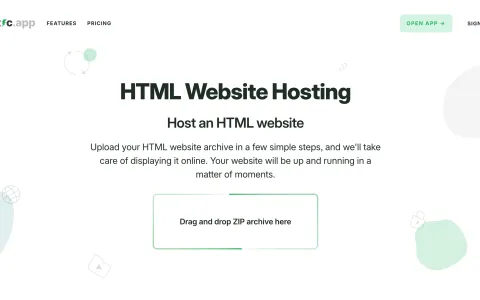
Static.app’s Claude upload box takes ZIP files, not loose .html files, so compress it even though it’s a single file. On a Mac, right-click and choose Compress. On Windows, right-click and choose Send to → Compressed (zipped) folder. If your artifact uses images, put them in the same ZIP and reference them with relative paths like images/logo.png.
Step 3: Upload and Publish
Drop the ZIP onto the Upload Claude Artifact box on the Claude hosting page, or onto the drop zone in your Static.app dashboard. It unpacks the archive and deploys it in a few seconds. The rest of the steps are the same as in our Claude website guide.
Put the Artifact on Your Own Domain
Custom domains come with any paid plan. In your site’s settings, add the domain, then point it at Static.app with the DNS record the dashboard shows you. The help center has walkthroughs for Cloudflare, Namecheap and GoDaddy. Your files don’t change, and HTTPS is set up for the new domain automatically.
Add a Working Contact Form
If your artifact has a form, add the static-form attribute to the <form> tag. Submissions then show up in your Static.app dashboard, with spam protection, and you don’t need any backend code. You can even ask Claude to do it: “Add the static-form attribute to the contact form and give every field a name.” Forms are a paid-plan feature.
Updating the Site When Claude Changes the Artifact
Artifacts rarely stay finished. When Claude makes a new version, you have three ways to update the live site without starting over:
- Paste the new code. Open
index.htmlin Static.app’s browser code editor, replace its contents with Claude’s new version, and save. - Replace the file. Drag the new
index.htmlinto the site’s file manager to overwrite the old one. - Sync a folder. The Static.app desktop app for Mac and Windows keeps a folder on your computer in sync with the site, so saving the file publishes it.
Importing the link again is the quickest-looking option, but it may create a second site instead of updating the first. Stick with one of the three above for a site that already has your domain on it.
Troubleshooting
The link isn’t public. Set the artifact to Anyone with the link, or publish it if it’s a legacy artifact. On Team and Enterprise plans, an owner may need to allow sharing outside the organization first. If it still won’t import, use Method 2.
This is almost always a React artifact uploaded as raw JSX. Ask Claude for a self-contained HTML version, open it locally to confirm it works, and upload that instead.
The Claude upload box expects a ZIP. Compress your index.html first, and check that the file is named index.html and sits at the top of the ZIP, not inside a subfolder.
Artifacts that call Claude only work inside Claude, because each viewer uses their own Claude plan. On a public website you would need your own AI API and a server to keep the key secret, which is beyond what a static host does.
How Much It Costs
Static.app starts with a 7-day free trial: one website, 50 MB of storage, a free subdomain and SSL, with no credit card. To keep publishing after the trial you need a paid plan. The Starter plan costs $6 per month, or $5 per month billed annually, and adds a second site, 500 MB, custom domains, forms and analytics. Prices were checked in November 2026, and the current numbers are on the pricing page.
From Chat to a Real Website
An artifact is a draft that happens to run. Moving it to a host gives it an address that won’t move, a domain that’s yours, and the forms and analytics a public page needs. Check that it runs as plain HTML, paste the link or upload the file, and you’re done.
Still deciding where to host? Our roundup of the best static hosting for HTML websites compares the other options.