If your cold emails or Outlook sends keep landing in spam, work out why before you buy anything. Check four things in this order: authentication, blacklists, content and sending volume. After that, pick the tool that fixes the problem you actually found. A lot of cold email threads jump straight to “get a warmup tool.” Warmup won’t fix a broken DKIM record or a blacklisted IP. It just sends more mail through a pipe that’s already broken.
This guide covers that checklist, then the Microsoft-specific checks (Outlook and Hotmail filter differently from Gmail), then a matching of problems to tools, and finally how far you can trust spam checker results. We checked every price, rule and rating below on November 24, 2026.
TL;DR
- Fix authentication first. SPF, DKIM and DMARC all need to pass and align with your From domain.
- Check blacklists for your sending IP and domain with MxToolbox.
- For Outlook problems, register dedicated IPs in Microsoft SNDS and check reverse DNS.
- Best placement test plus expert help: Unspam. Free account with 21 tests a month, the highest G2 rating of the tools here (4.8), and deliverability consultants.
- Best quick free check: mail-tester.com. 3 free tests every 24 hours, no account.
- Warmup: MailReach, but only after authentication and blacklists are clean.
- List verification: ZeroBounce or Kickbox.
Diagnose before buying warmup
1. Authentication: SPF, DKIM, DMARC
This is the most common cause, and it’s free to check.
- SPF should list every service that sends as your domain, including your cold email tool, your CRM and your helpdesk. Two things make it fail without any visible error. First, the SPF standard (RFC 7208) caps DNS-querying terms like
include,a,mxandredirectat 10 per check; going over returns a “permerror”. Second, publishing more than one SPF record on the same domain also returns a permerror. - DKIM should be signed with your domain, not the sending platform’s shared domain.
- DMARC should exist, and SPF or DKIM has to align with the domain in your From address.
Quick test: send a message to a Gmail account, open it, and choose “Show original.” You want SPF, DKIM and DMARC to all say PASS. If any of them fails, fix it before doing anything else.
Both big providers now have written rules for high-volume senders:
- Gmail: you count as a bulk sender once you send close to 5,000 messages a day to personal Gmail accounts, and you stay classed as one permanently after that. Bulk senders need SPF and DKIM; DMARC (a
p=nonepolicy is enough), with the From domain aligned to SPF or DKIM; one-click unsubscribe (RFC 8058) on marketing mail, with unsubscribes honoured within 48 hours; and a spam rate in Postmaster Tools below 0.10% that never reaches 0.30%. Google said it was stepping up enforcement from November 2025, including temporary and permanent rejections. - Outlook.com (consumer Hotmail, Live and Outlook.com addresses): from May 5, 2025, domains sending over 5,000 emails a day must pass SPF and DKIM, and have DMARC of at least
p=nonealigned with one of them. Microsoft first routed failing mail to Junk. Its support pages now say non-compliant mail is rejected with a550 5.7.515bounce.
Cold email volumes are often below those thresholds. Even so, meeting the same bar is the easiest way to look like a legitimate sender.
2. Blacklist status
Look up both your sending IP and your domain, including any custom tracking or link domain. MxToolbox’s blacklist lookup is the usual free first stop. A listing on a major blocklist explains a sudden drop better than anything in your copy does.
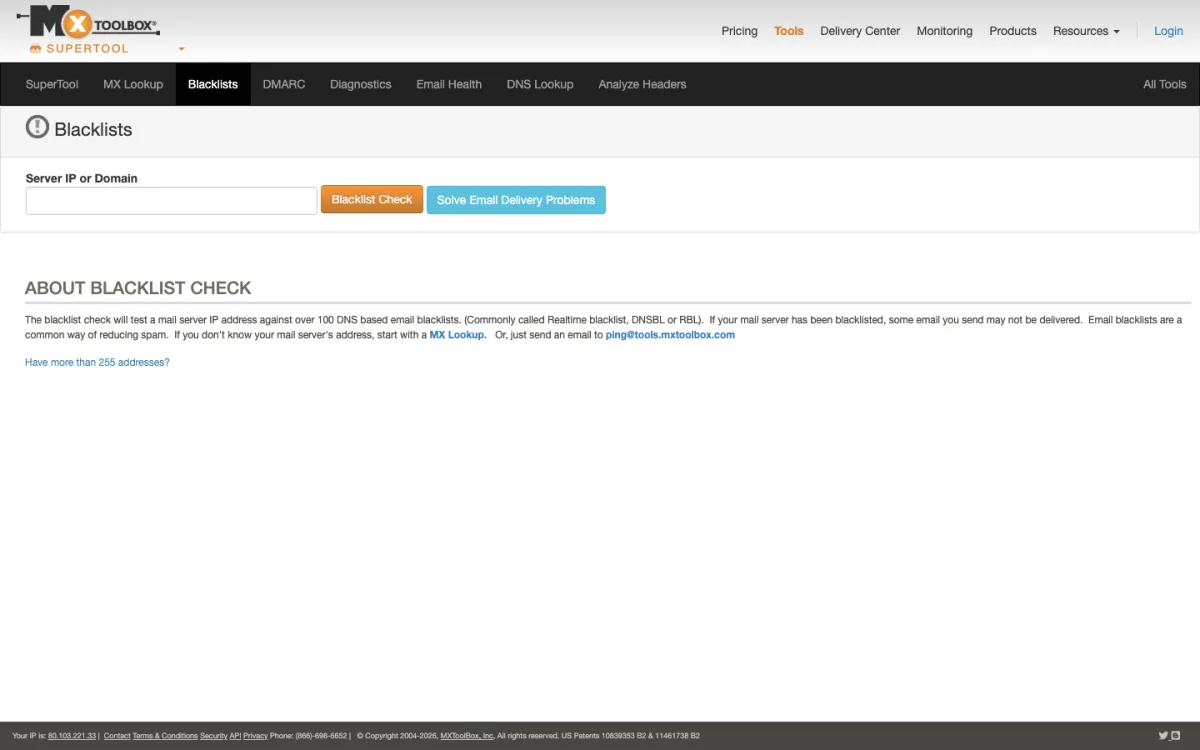
If you’re listed, find out why before you request removal. The usual causes are a purchased list, spam traps from an old list, or a compromised account. If you don’t fix the cause, you’ll get listed again.
3. Content
Content matters less than people think, but it still matters for cold email:
- Link and tracking domains with a poor reputation, especially shared tracking domains on cold email platforms
- Link shorteners
- Image-only emails, or heavy HTML in a message that’s meant to look personal
- Wording that looks like obvious bulk mail
- A missing or broken unsubscribe option
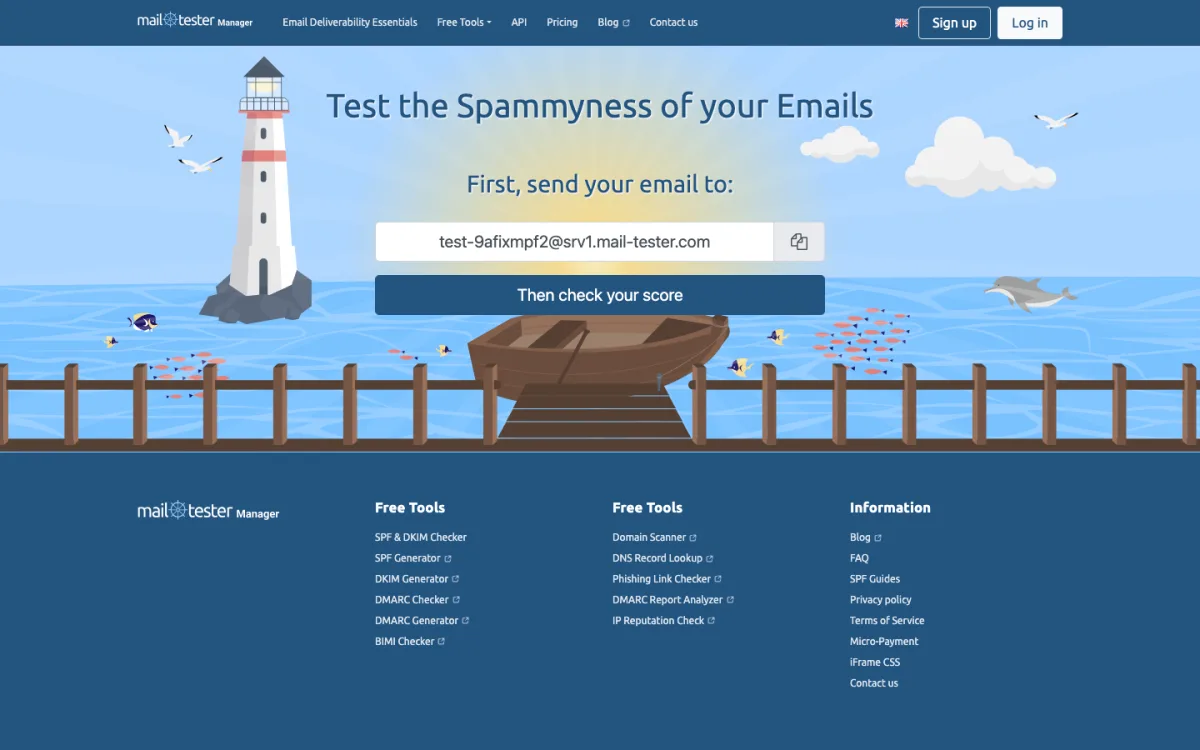
mail-tester.com gives you a quick score with readable feedback, and that’s enough for a spot check.
4. Sending volume and pattern
A new domain or mailbox that starts out sending hundreds of emails a day is the classic way to sink a cold campaign. Ramp up gradually, spread sends across mailboxes, and watch bounce and reply rates. This is the point where warmup can help, but only once steps 1–3 are clean.
Outlook / Microsoft junk specifics
When Gmail delivers to the inbox and Outlook doesn’t, the cause is usually on Microsoft’s side, and you need Microsoft’s tools to see it.
Microsoft SNDS and sender support
If you send from your own dedicated IPs, register them in Microsoft’s Smart Network Data Services (SNDS). The old sendersupport.olc.protection.outlook.com/snds/ address now redirects there.
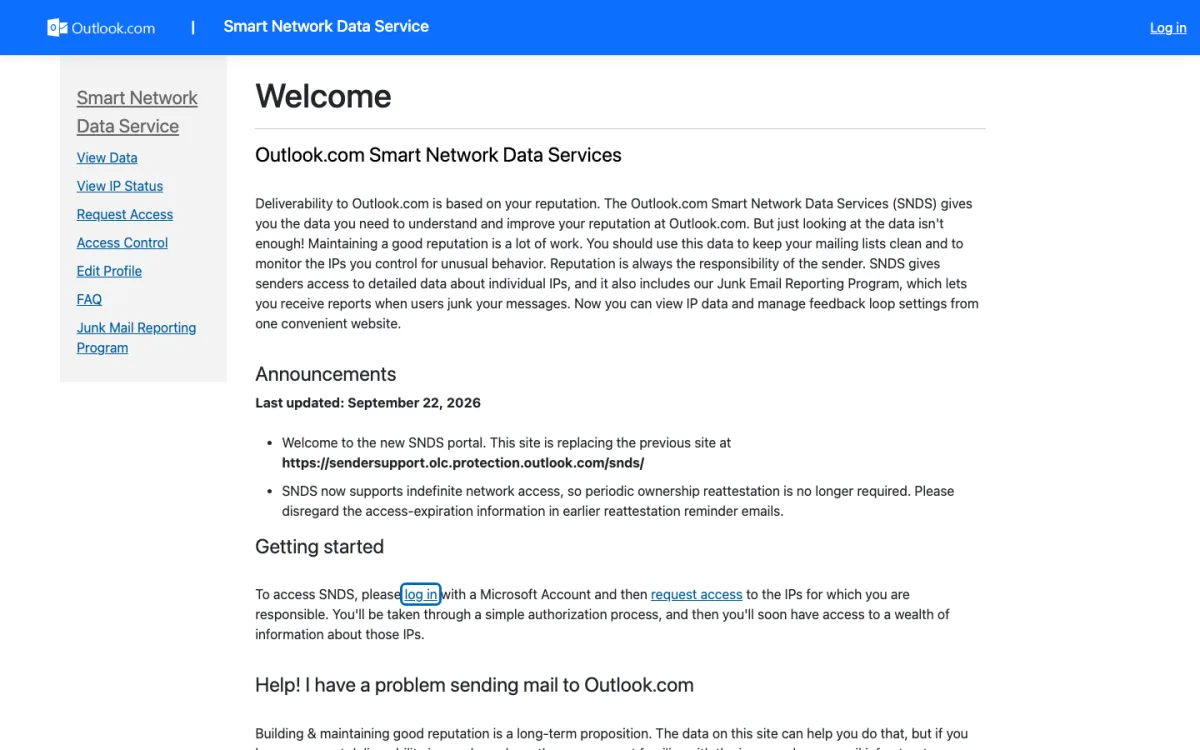
For each IP, SNDS shows:
- A traffic-light filter result: green means under 10% judged as spam, yellow 10–90%, red over 90%.
- Message and recipient volume.
- Your complaint rate. Microsoft’s FAQ calls under 0.3% “a good bar to shoot for”.
- Notes such as complaint counts or malware hosting.
- Whether the IP is blocked or junked.
Data goes back 90 days. It can be missing for IPs that sent fewer than 100 messages on a given day.
If your mail is being blocked, not just sent to junk, Microsoft has separate delisting routes:
- Outlook.com / Hotmail recipients: the consumer sender support form at olcsupport.office.com (needs a Microsoft sign-in).
- Microsoft 365 business recipients: the Office 365 delist portal at sender.office.com. Use it for bounces caused by your sending IP.
SNDS is much less useful on shared IPs, such as sending from Google Workspace or Microsoft 365 mailboxes or a shared ESP pool. There your domain reputation and recipient engagement carry most of the weight, and you can’t see much of either from SNDS.
Reverse DNS and IP reputation
For dedicated IPs, check that:
- The sending IP has a reverse DNS (PTR) record
- The PTR hostname resolves back to the same IP
- The hostname looks like a real mail server, not a generic name from your hosting provider
Microsoft and many other receivers treat missing or generic reverse DNS as a strong negative signal. A new IP with no sending history also starts with no reputation. That’s where gradual IP warmup helps.
Other Microsoft-specific habits
- Microsoft users often move mail with “Junk” and “Not junk,” and those actions shape future filtering. Ask engaged recipients to mark you “Not junk” or add you as a contact.
- Placement can differ between consumer Outlook.com/Hotmail and business Microsoft 365 tenants, where admins can add their own rules. Test both if your audience is mostly B2B.
Tools by problem
Choose the tool based on what the diagnosis found. All prices are in USD, taken from each vendor’s pricing page on November 24, 2026.
| Problem you found | Tool options | Notes | Price |
|---|---|---|---|
| Inbox placement (seed test) | Unspam, GlockApps | See which providers put a test in inbox, spam or promotions | Unspam: free account (21 tests/mo), pay-per-test from a $5 monthly minimum. GlockApps: free plan (2 test credits), Essential $59/mo billed annually |
| DNS / auth / blacklist lookups | MxToolbox | Free public lookups are the standard first check | Free tier (weekly blacklist monitoring, 1 domain); Delivery Center from $129/mo |
| Quick content and auth score | mail-tester.com | Fast spot check before a send | 3 free tests per 24 hours; packs from $5 for 10 tests |
| Mailbox warmup | MailReach | For new or recovering mailboxes, once auth is clean | $19.50 per mailbox per month (includes spam test credits) |
| List verification | ZeroBounce, Kickbox | Remove invalid addresses and traps before sending | ZeroBounce: 100 free credits/mo, 2,000 for $39. Kickbox: 100 free, then $10 per 1,000 at small volumes |
| Hands-on audit or consulting | Unspam consultants, ZeroBounce Consulting | When you’ve done the basics and still can’t find the cause | Price on request |
Placement test: Unspam, GlockApps
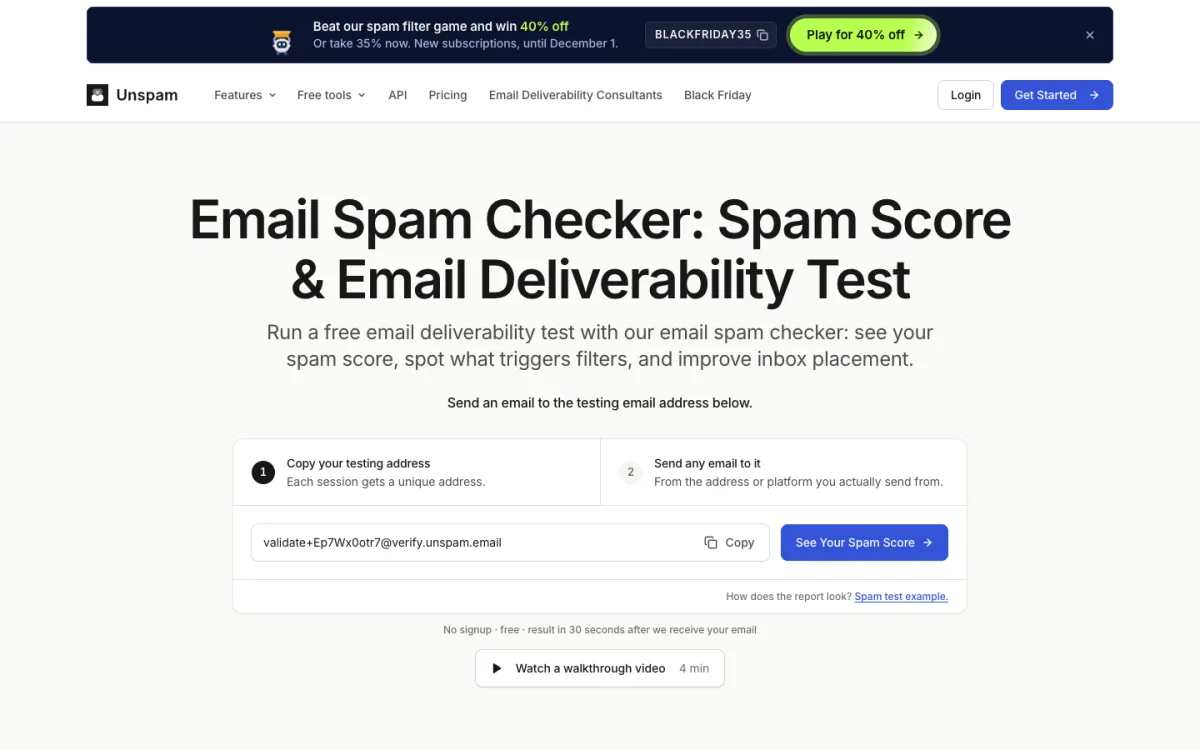
Unspam combines a placement test with technical checks, including reverse DNS and list-unsubscribe setup alongside SPF, DKIM and DMARC. It also offers access to deliverability consultants who help with IP warmup and audits. A free account includes 21 tests a month, and paid use is pay-per-test from a $5 monthly minimum. On public review sites it has the highest G2 rating of the tools in this article: 4.8 from 38 reviews, against 4.2 for GlockApps (see the table below). Reviewers mostly praise the fast pre-send checks and the easy setup. The most common complaint is that free-tier test credits run out quickly. It makes the most sense if you want testing plus someone to help work out the cause.
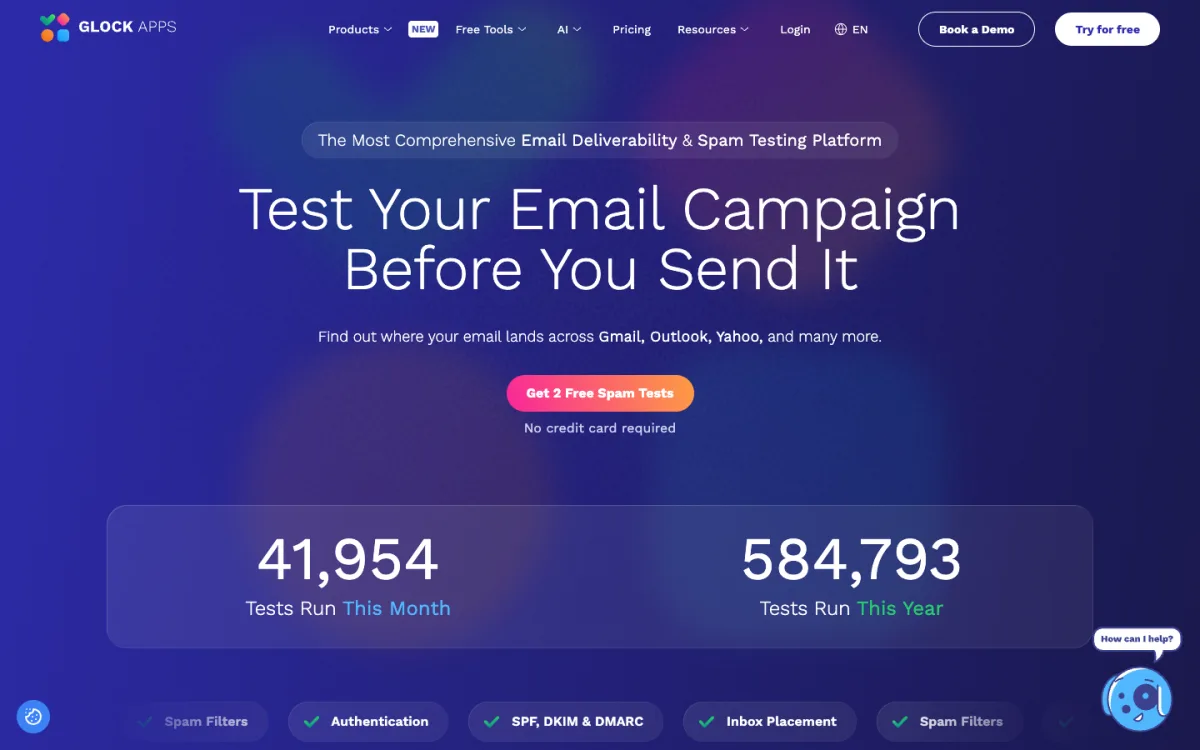
GlockApps is the established seed-test tool. You send to its seed addresses, and it reports where the message landed at each mailbox provider. It has a small free plan, and the cheapest paid plan, Essential, is $59 a month billed annually for 360 test credits. It’s a solid default if all you want is placement data. If you only need an occasional check, mail-tester.com’s free tests may be all you need.
What public reviews say
Ratings as listed on each site on November 24, 2026:
| Tool | G2 | Capterra | Trustpilot |
|---|---|---|---|
| Unspam | 4.8 (38 reviews) | 4.9 (7) | No reviews yet |
| MailReach | 4.7 (44) | 5.0 (24) | 4.0 (10) |
| GlockApps | 4.2 (29) | 4.8 (40) | 4.4 (12) |
| MxToolbox | 4.1 (29) | 4.5 (6, Delivery Center) | 4.2 (19) |
| mail-tester.com | Not listed | Not listed | 3.5 (11) |
Review counts are small across the board, so treat these as a rough signal, not a ranking. The tools also do different jobs: MailReach is warmup, while mail-tester.com and MxToolbox are mostly free checkers.
Warmup: MailReach
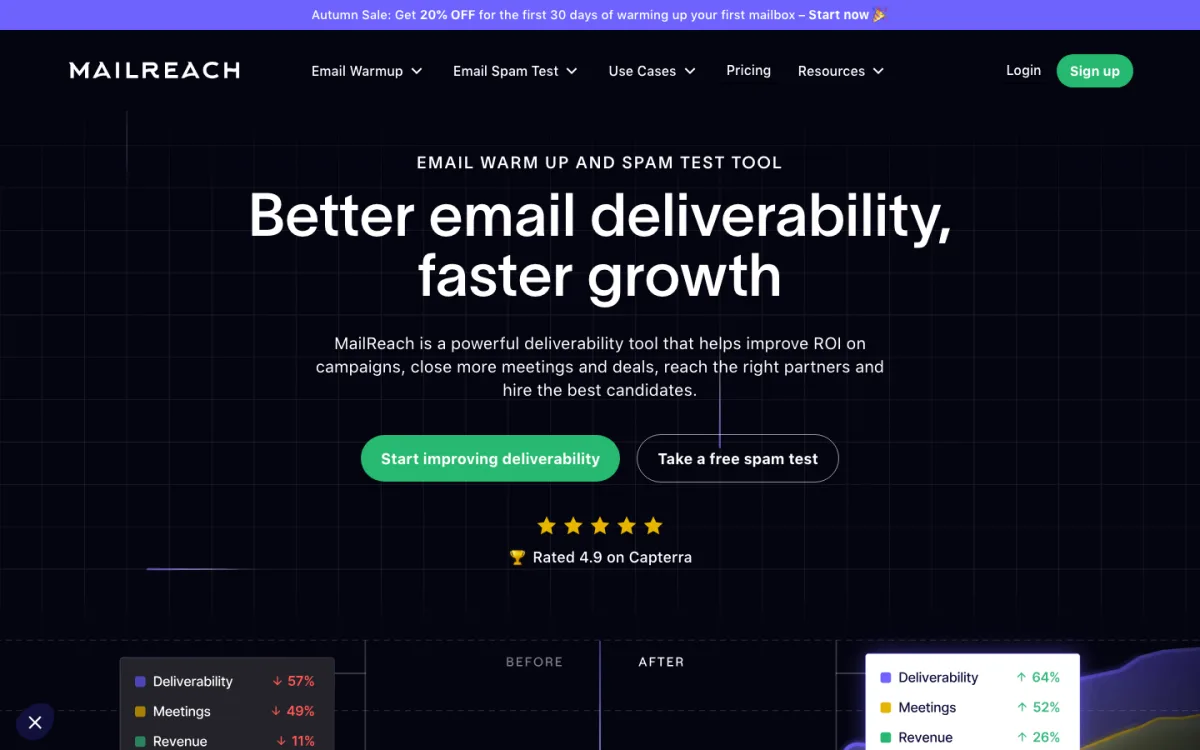
MailReach is a well-known option for warming up mailboxes before cold outreach. Its All In One plan costs $19.50 per mailbox per month and bundles the warmer with spam-test credits; annual billing is listed as 20% cheaper. It’s useful for new domains and for mailboxes recovering from a reputation dip. It doesn’t fix failed authentication, a blacklisting or a bad list.
List verification: ZeroBounce, Kickbox
High bounce rates damage your reputation fast, and cold lists are where bad addresses pile up. ZeroBounce and Kickbox both verify addresses before you send:
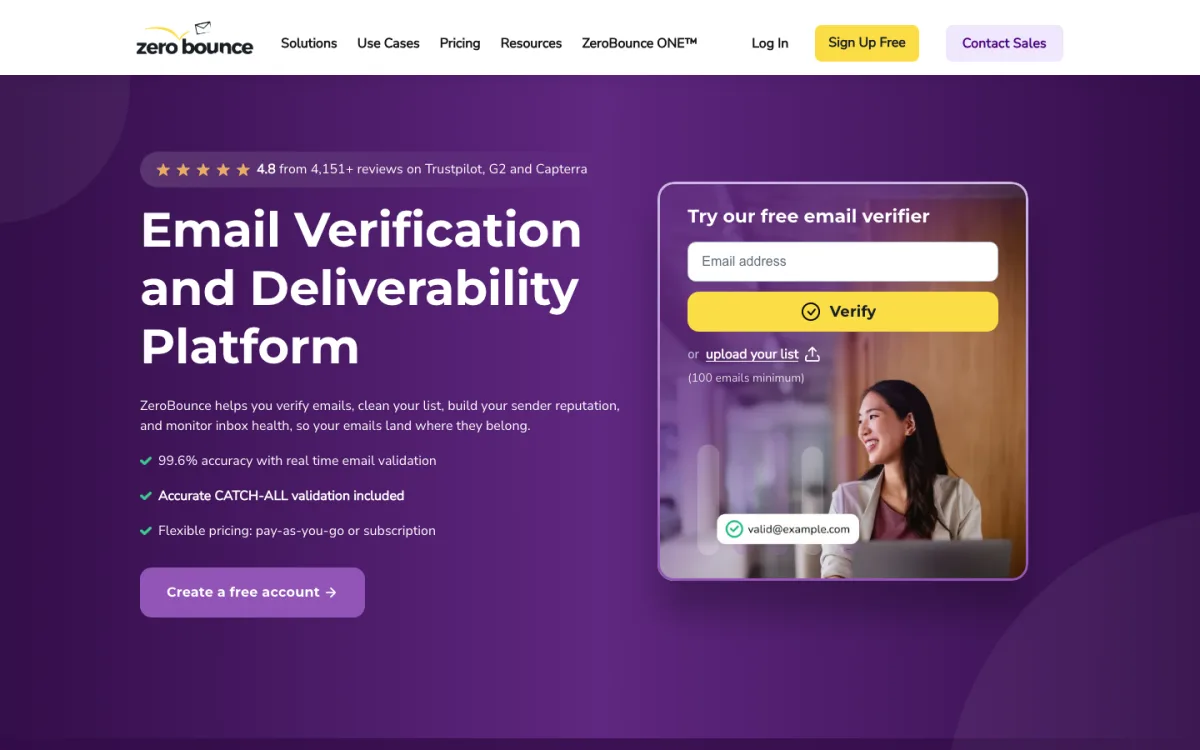
- ZeroBounce gives 100 free credits a month. Its smallest paid pack is 2,000 credits for $39, about $19.50 per 1,000.
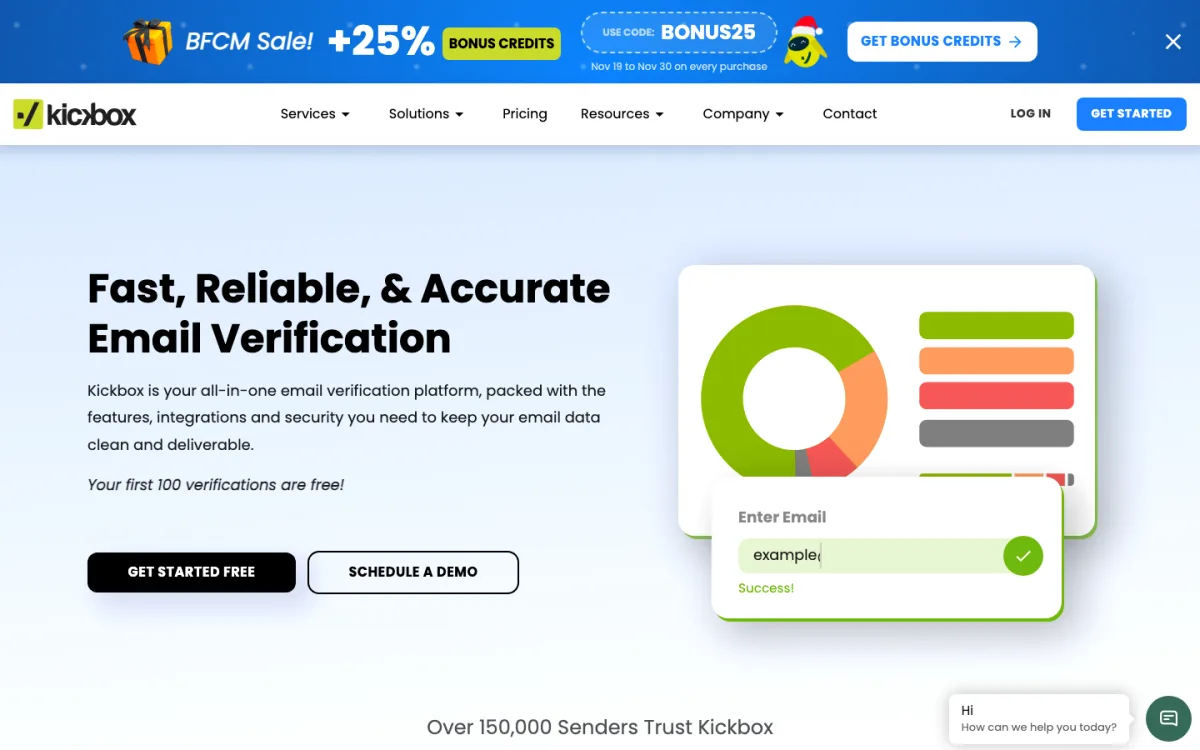
- Kickbox gives 100 free verifications. After that it charges $10 per 1,000 at small volumes, falling to $6–7 per 1,000 at 10,000–25,000.
Unspam also sells email verification as an add-on, from $6.40 per 1,000 addresses, which is handy if you already test with it.
ZeroBounce also sells deliverability consulting: an email authentication review (SPF, DKIM, DMARC and BIMI), a full deliverability audit covering list hygiene, authentication, engagement, warmup and blacklists that ends in a remediation plan, and DMARC and BIMI implementation. Pricing is on request after a free consultation.
Are checker tools accurate?
They’re accurate about what they measure. They just measure less than people assume.
What a seed or placement test can tell you:
- Whether authentication passes for your setup
- Whether a specific message lands in inbox, spam or promotions at the seed mailboxes, at that moment
- Whether something changed between two sends, like a new link domain or a new template
What it can’t tell you:
- How your recipients’ mailboxes treat you. Gmail and Microsoft filter partly on each recipient’s engagement history with you, and seed accounts don’t have that history.
- How business Microsoft 365 tenants with custom admin rules will treat you
- What will happen at volume. A single test email doesn’t behave like 2,000 sends an hour from a new domain.
So a 100% inbox seed result can still sit next to real prospects finding you in junk. Use checkers to catch broken setups and regressions before you send. Use real signals to judge reputation over time: SNDS for dedicated IPs, Google Postmaster Tools for Gmail, and your own reply and bounce rates.
Short version
- Fix SPF, DKIM and DMARC first, and confirm with “Show original.”
- Check blacklists for your IP and domain with MxToolbox.
- Spot-check content with mail-tester.com.
- For Outlook problems on dedicated IPs, register in SNDS and check reverse DNS. If you’re blocked, use the Outlook.com or Microsoft 365 delist form.
- Verify your list (ZeroBounce or Kickbox) before cold sends.
- Only then warm up (MailReach), and run placement tests (Unspam or GlockApps) to confirm.