If your domain or sending IP got blacklisted, you get removed in four stages. First, run a blacklist lookup on both the IP and the domain to see exactly which lists name you. Second, fix whatever caused the listing: a compromised account, a bad list, or missing authentication. Third, request removal through each list’s official delisting page. Fourth, monitor your IP and domain so a new listing doesn’t catch you off guard. If you request removal before you fix the cause, you’ll usually just get listed again.
The quickest way to do the first and last stages is Unspam. Its free blacklist checker shows in seconds which public blacklists list your IP or domain. Its scheduled tests then re-check blacklists, authentication and content on a schedule you choose, and email you when something slips. We checked every delisting route, timing and tool detail below on November 24, 2026.
Short answer: check, fix, request removal, monitor
- Run a blacklist lookup on the sending IP and the domain. IP lists and domain lists are separate, and a clean IP doesn’t mean a clean domain.
- Check whether the listing is hurting delivery. Look for bounces with block codes from Gmail, Microsoft or your recipients’ servers.
- Fix the root cause before requesting delisting. If spam is still going out, most lists relist you automatically, and some make the next removal harder.
- Use each list’s official removal route. Removal is free. Spamhaus says there is “never any charge or fee” for removing any listing.
- Set up monitoring so you hear about the next listing before your campaigns do.
Step 1: Find which blacklists you’re on (IP and domain blacklist lookup)
Check your IP and domain with Unspam’s free blacklist checker
Open the Unspam blacklist checker and enter what you want to check:
- Your sending IP. It’s checked against more than 20 public email DNS blacklists (DNSBLs), including SpamCop, Barracuda, Mailspike, DroneBL, PSBL, UCEPROTECT levels 1 to 3, InterServer, 0Spam, Backscatterer and NordSpam. Results are grouped by importance and link to each list’s lookup or removal page. The checker also shows whether the IP has a reverse DNS (PTR) record.
- Your domain (or an email address, which checks its domain). It’s checked against public domain blacklists such as SURBL.
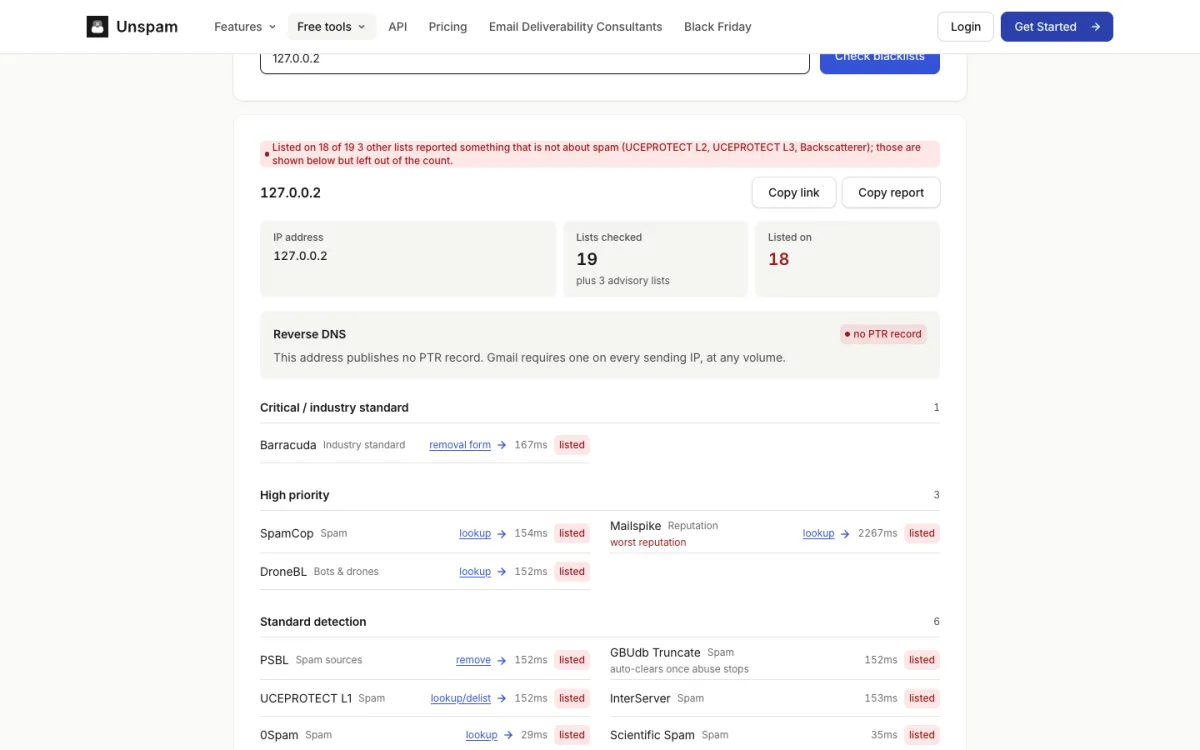
The check runs in your browser over DNS-over-HTTPS, needs no signup, and stores nothing. Spamhaus and URIBL block lookups sent through public DNS resolvers, so the checker links you straight to their own lookup pages below the results instead of checking them inline. Always check those two by hand.
Not sure what your sending IP is? Open a message you sent in Gmail, choose Show original, and find the first Received: from line added by your own provider. If you send through an ESP (Mailchimp, SendGrid, HubSpot and so on), you’re usually on their shared IPs. In that case, focus on your domain and tell your ESP about any IP listing.
MxToolbox’s free blacklist check, which tests an IP against “over 100 DNS based email blacklists”, and MultiRBL, which lists around 300 live DNS lists including whitelists and informational lists, are useful second opinions. Unspam’s advantage is that the same account that runs the lookup also tests your authentication, content and inbox placement, so you can find the cause as well as the listing.
Domain lists vs. IP lists
| List type | What it lists | Examples | Typical cause |
|---|---|---|---|
| IP blacklists | The server IP that sent the mail | Spamhaus SBL, XBL, CSS and PBL; Barracuda; SpamCop; UCEPROTECT | Spam or malware sent from that IP, or a dynamic or residential IP sending mail directly |
| Domain blacklists | Domains that appear in spam: in the From address, links or tracking domains | Spamhaus DBL, SURBL, URIBL | Your domain or link domain appearing in spam, phishing or malware, sometimes because someone abused it |
| Browser/URL blocklists | Websites flagged as unsafe | Google Safe Browsing | Hacked site, malware or phishing pages on your domain |
Make a list of every hit: the list name, whether it lists your IP or your domain, and the date. You’ll use it in steps 2 and 4.
Step 2: Decide which listings actually matter
Not every listing hurts you. Hundreds of DNS blacklists exist, and most mailbox providers only use a few.
Major lists vs. minor lists
| Listing | How much it matters | What to do |
|---|---|---|
| Spamhaus SBL, XBL, CSS, DBL | High. Widely used by corporate mail servers and filtering services | Fix and request removal right away |
| Spamhaus PBL | Only matters if you run your own mail server on that IP | Usually: send through your ISP’s or ESP’s authenticated SMTP instead (see Step 4) |
| Barracuda | High for B2B (many companies use Barracuda appliances) | Fix, then request removal |
| SpamCop | Medium. Expires on its own | Fix; it clears 24 hours after the last report |
| UCEPROTECT Level 1 | Low to medium | Fix; it expires 7 days after the last spam-trap hit |
| UCEPROTECT Level 2/3 | Low. These list whole provider ranges | Nothing for you to request; your provider has to act |
| Small or abandoned lists | Usually none | Note them and move on. SORBS, for example, shut down in June 2024 |
Signs of real impact: bounces with block codes
A listing matters when your mail starts bouncing or disappearing. Check your bounce logs or your ESP’s bounce report for messages like these:
550 5.7.1 ... blocked using zen.spamhaus.org(ordbl.spamhaus.org): a Spamhaus listing is in use by that receiver.550 5.7.606-649 Access denied, banned sending IP [IP]: Microsoft 365 has blocked your IP.550 5.7.511 Access denied: a Microsoft block that the self-service portal can’t clear (see Step 4).550 5.7.1 ... part of their network is on our block list (S3150): an Outlook.com block on the provider’s range.550 5.7.26from Gmail: an authentication failure, not a blacklist. Fix SPF, DKIM and DMARC instead.
If your mail is landing in spam but nothing is bouncing, a blacklist may not be the problem at all. Run a pre-send test in Unspam before you chase delistings. It scores authentication, content and blacklists together. Its inbox placement test also reports where your email landed at each mailbox provider and checks your sending IP against blacklists in the same run.
Step 3: Fix the root cause
Blacklists list you because of something they saw. Find it and stop it before you ask for removal.
Compromised accounts and servers
This is the most common cause of Spamhaus XBL and CSS listings.
- Look for sudden spikes in outgoing mail volume, unknown mailboxes or apps sending through your server, and sent-items folders full of messages you didn’t write.
- Reset passwords on every mailbox that sends through the listed IP, and turn on multi-factor authentication.
- Check web forms and CMS plugins. An unprotected contact form or a hacked WordPress install can send thousands of messages from your web server’s IP.
- For the XBL, Spamhaus says the IP “will re-list the next time it makes a connection” if the infection is still there.
Purchased or scraped lists and spam traps
Spam traps are addresses that never signed up for anything. Some are recycled addresses that were abandoned long ago. Purchased, rented or scraped lists almost always contain them, and hitting them is how lists like UCEPROTECT and Spamhaus CSS detect spam.
- Stop sending to any list you didn’t collect yourself with clear consent.
- Remove contacts who haven’t opened or clicked in 6 to 12 months, or run them through a re-permission campaign first.
- Verify addresses before you send. Unspam’s email verification add-on checks lists from $6.40 per 1,000 addresses.
Missing or broken authentication
Authentication failures rarely cause a blacklisting directly. They do make every other problem worse, and they’re the most common reason Gmail and Microsoft send mail to spam or reject it outright.
- SPF: one record per domain, under 10 DNS lookups, and it includes every service that sends as you.
- DKIM: signed with your domain, not just your ESP’s.
- DMARC: at least
v=DMARC1; p=none; rua=mailto:dmarc@yourdomain.com, with SPF or DKIM aligned to your From domain. - Reverse DNS: if you run your own mail server, the sending IP needs a PTR record that matches your sending hostname.
Unspam validates SPF, DKIM, DMARC, BIMI, reverse DNS and list-unsubscribe in one test, so you can confirm the fix before you send again.
List hygiene and complaint rate
High complaint rates get you listed, and they get you filtered even when you’re not listed.
- Google asks bulk senders to keep the spam rate in Postmaster Tools below 0.10% and never let it reach 0.30%. Microsoft’s SNDS FAQ calls a complaint rate under 0.3% “a good bar to shoot for”.
- Add one-click unsubscribe (the
List-UnsubscribeandList-Unsubscribe-Postheaders) and honour unsubscribes within 48 hours. - Send people only what they signed up for, at the frequency you promised.
Step 4: Official delisting routes
Use the official pages below. Never pay a third party to “remove you from blacklists”, because removal from the major lists is free.
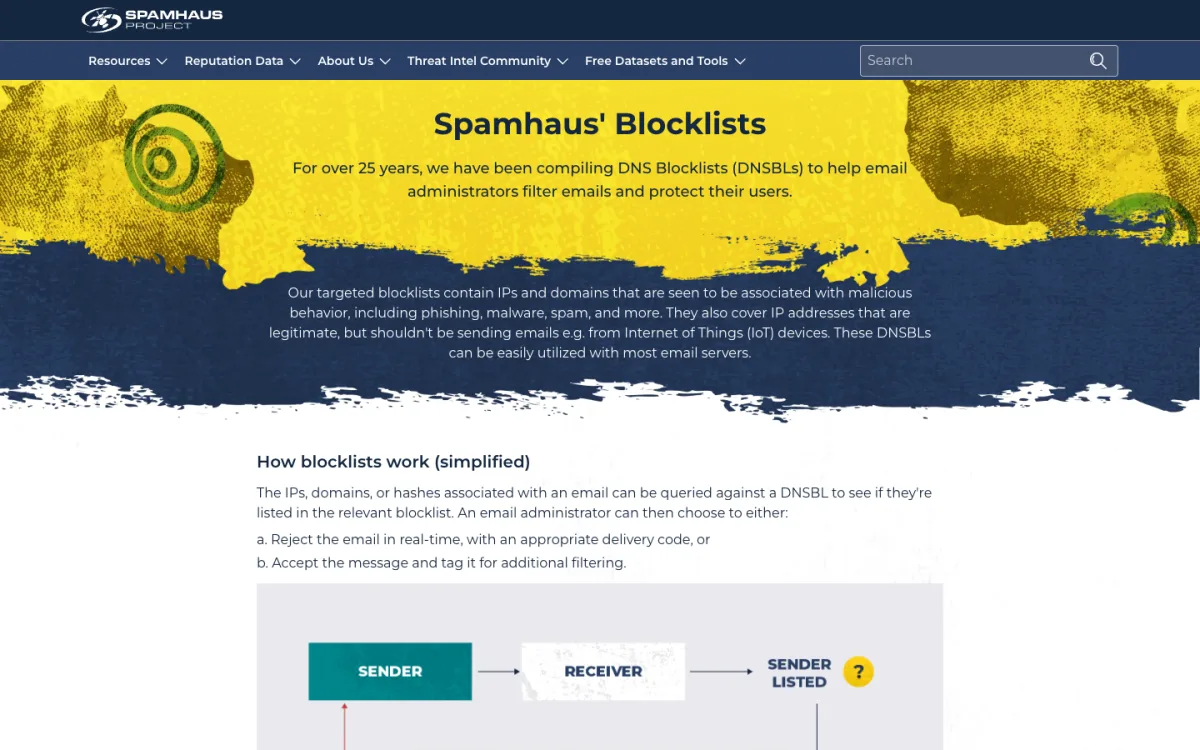
Spamhaus removal lookup
- Go to the Spamhaus IP and Domain Reputation Checker and look up your IP or domain. The page may first show a short browser check before the lookup loads.
- It shows which Spamhaus list you’re on and why. Where it can, it offers self-service removal. Where it can’t, Spamhaus says it “will automatically raise a ticket with our delisting team.”
- What to expect for each list:
- SBL: removal has to be requested by the ISP or hosting provider responsible for the IP, not by you. Other Spamhaus listings can’t be cleared while an SBL listing is in place. Contact your provider with your evidence of the fix.
- XBL: listings expire automatically once the malicious activity stops. Spamhaus asks you to allow 24 hours before opening a new ticket.
- CSS: listings normally expire three days after the last spam detection. Self-removals are limited, and the IP is relisted quickly if spam is detected again.
- PBL: this isn’t a penalty. It lists IP ranges that shouldn’t send mail directly, such as home and dynamic connections. If you send through your ISP’s or ESP’s authenticated SMTP, the PBL doesn’t block you. Only request an exclusion if you run a real mail server on a static IP. It takes about 15 minutes to take effect.
- DBL (domains): after you fix it, request removal through the checker. Approved removals can take up to 24 hours to reach all systems. Don’t send repeated requests; Spamhaus warns that too many can get you blocked.
Microsoft delist IP: the Office 365 sender portal and SNDS
Microsoft 365 / Exchange Online recipients (bounce 550 5.7.606-649):
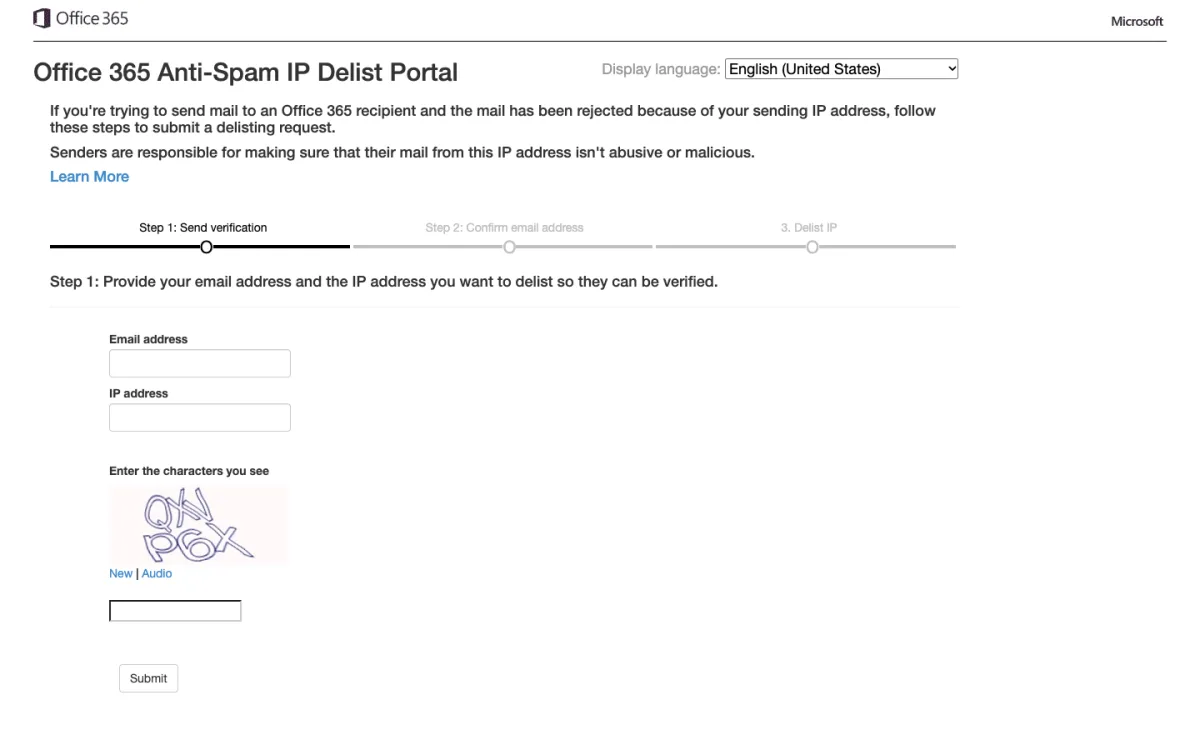
- Go to the Office 365 delist portal.
- Enter the email address that received the bounce (NDR) and the IP from the error, then type the characters shown. You can submit one address and one IP per visit.
- Click the confirmation link Microsoft emails you, then select Delist IP.
- Allow up to 24 hours or longer. Microsoft’s delist portal guide explains each step.
Bounce 5.7.511: the portal can’t clear this one. Email delist@microsoft.com with the full bounce message and the IP. Microsoft says it will reply within 48 hours.
Outlook.com, Hotmail and Live recipients: submit the Outlook.com sender support form. You need to sign in with a Microsoft account. Include your sending IP, the bounce text and what you’ve fixed.
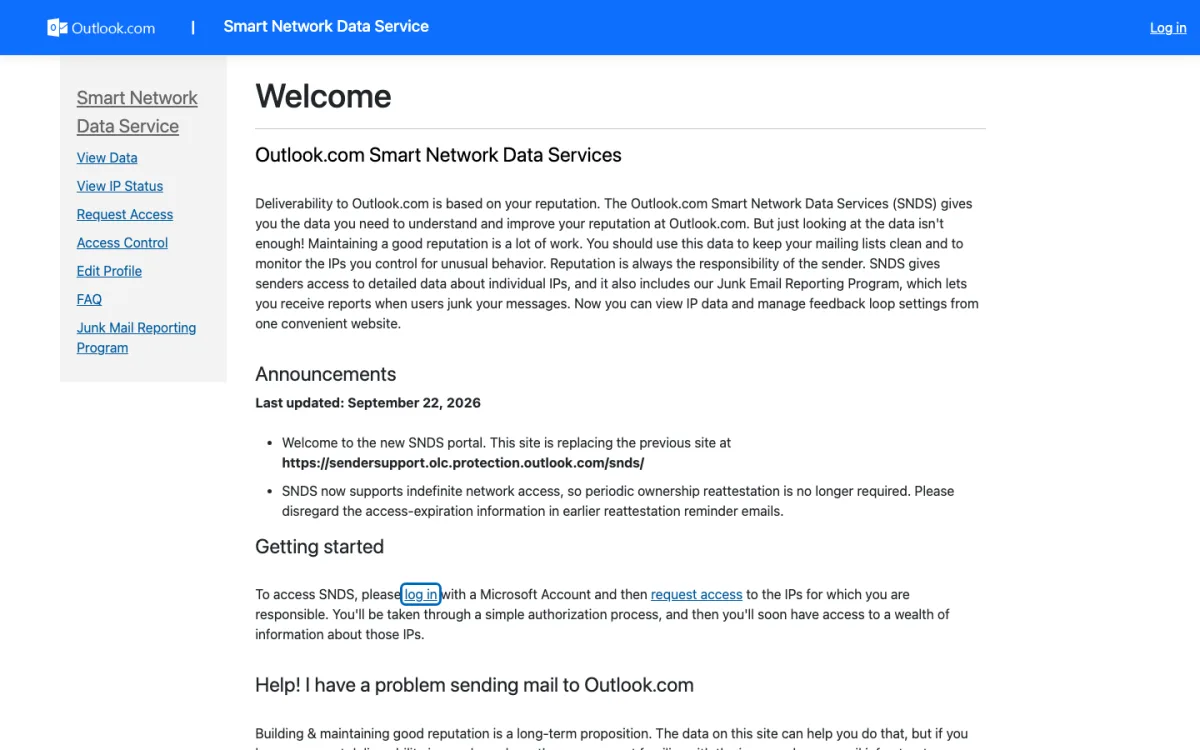
SNDS and JMRP: if you send from dedicated IPs, register them in Smart Network Data Services (SNDS). It shows how Outlook.com rates your IPs, with traffic-light filter results, complaint rates and block status. Also sign up for the Junk Mail Reporting Program (JMRP). It sends you a report each time an Outlook.com user marks your mail as junk, and reports typically start within 72 hours.
Google Safe Browsing review if the domain is flagged
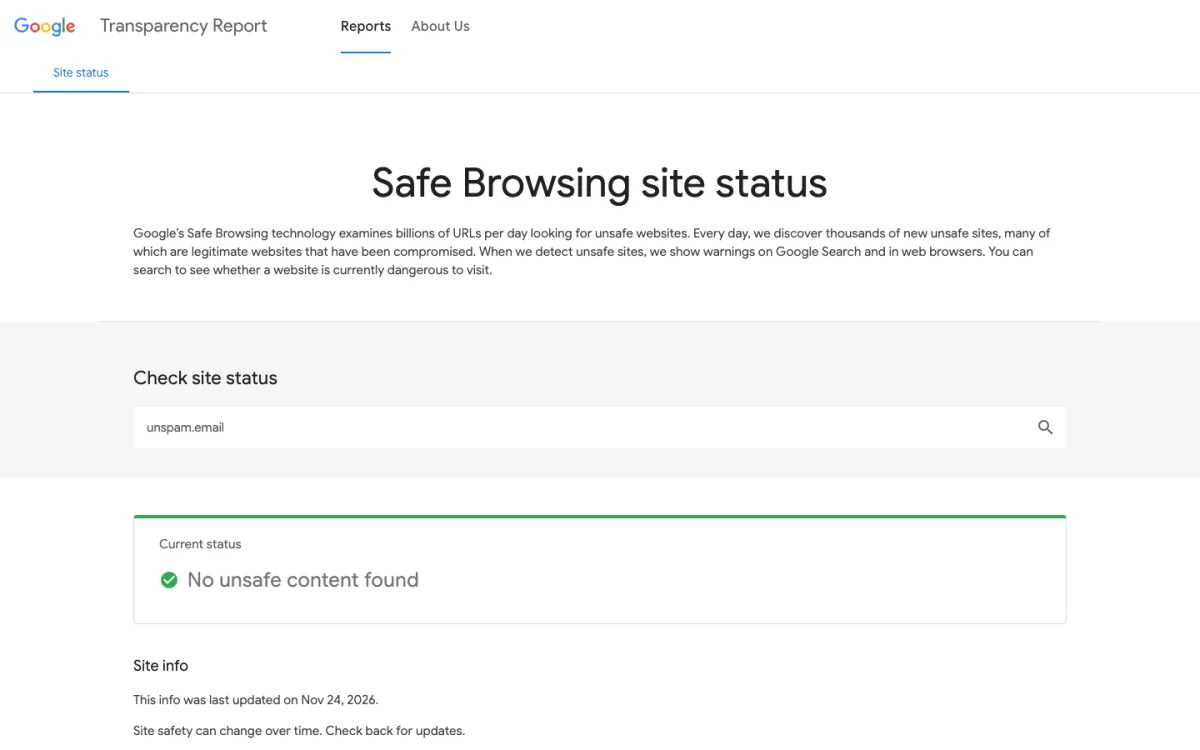
If browsers show “Deceptive site ahead” or your links are flagged, your domain is on Google Safe Browsing. That’s separate from email blacklists, but it hurts email too, because filters check the links in your messages.
- Check your domain on the Safe Browsing site status page.
- Verify the site in Google Search Console and open the Security Issues report.
- Clean every affected page: remove malware, phishing pages and injected spam, and close the hole that let it in.
- Select Request Review. Google says a review “can take from a few days to a few weeks”. Requesting a review before everything is fixed can slow down your next request, or even get you marked as a repeat offender.
Other common lists
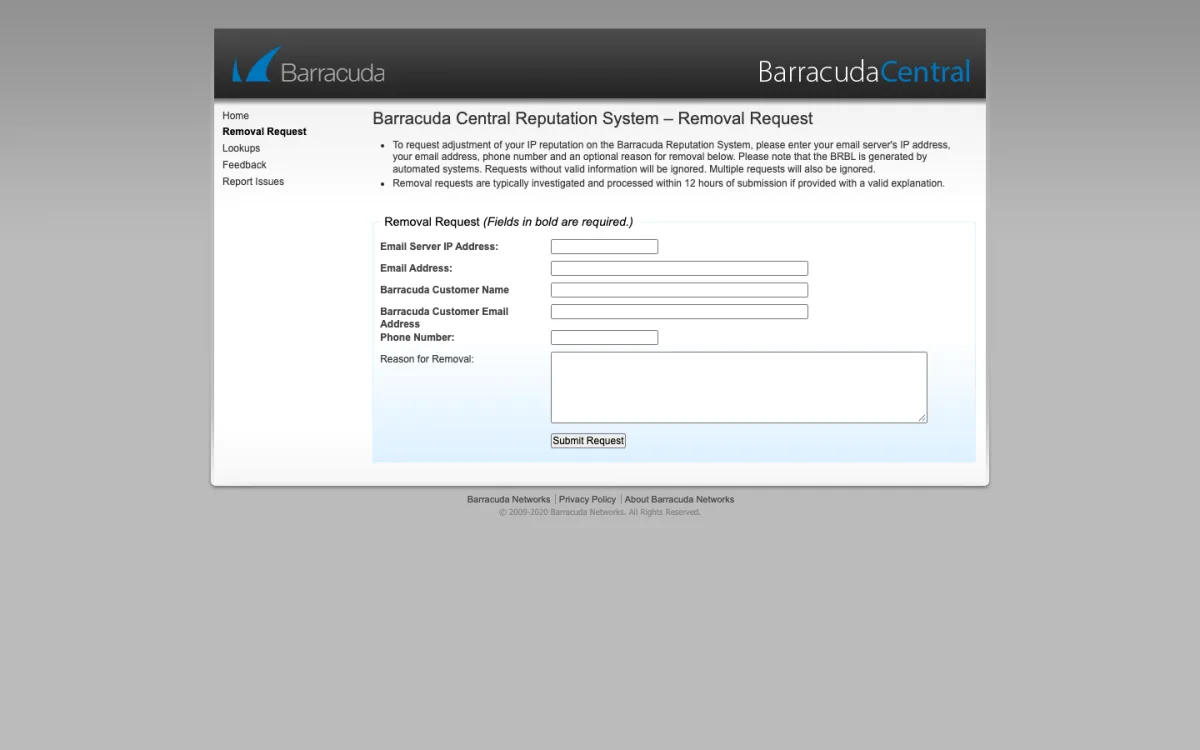
- Barracuda: use the removal request form. It asks for your mail server’s IP, your email address and a phone number, plus an optional reason. Requests are usually processed within 12 hours when you give a valid explanation, and Barracuda ignores repeat submissions.
- SpamCop: nothing to request. Listings clear automatically after 24 hours with no new reports. SpamCop asks you not to write in for early delisting.
- UCEPROTECT: Level 1 expires 7 days after the last spam-trap hit. The paid express removal is optional, so you don’t need to pay. Levels 2 and 3 clear automatically once the provider’s range no longer meets the listing criteria.
- SURBL and URIBL (domains): start at the SURBL lookup or URIBL lookup. URIBL requires a login to request delisting.
A warning that applies to every list: if you get delisted without fixing the cause, you’ll usually be relisted, often within days. Some lists react to repeated listings by making the next removal harder, or by listing a wider IP range.
Step 5: Set up ongoing blacklist monitoring
Once you’re clean, monitoring is what stops the next listing from becoming a week of bounced campaigns. Look for three things: which lists are covered, how often they’re checked, and how you get alerted.
Blacklist monitoring tools compared
| Tool | What it monitors | Check frequency | Alerts | Free option |
|---|---|---|---|---|
| Unspam | Blacklists together with authentication (SPF, DKIM, DMARC, BIMI, reverse DNS), content and inbox placement, in one scheduled test. The free checker covers 20+ IP DNSBLs plus domain lists such as SURBL | Daily, weekly, monthly, or on the weekdays you pick, per test | Email to the addresses you choose, on every run or only when results drop below your threshold. Results are also available through the API | Free blacklist checker, no signup. Free account with monthly tests. Scheduling is on the Custom plan |
| MxToolbox | IP and domain blacklists (100+) | Weekly on the free plan; paid plans describe “near real-time” notifications | Email, SMS, webhook, Pushover | Weekly monitoring for 1 domain |
| HetrixTools | 94 blacklists plus SNDS data | Every 24 hours on the free plan, more often on paid plans | Email, SMS, Slack, webhooks and others | 32 IPs or domains |
| Validity Everest | IP and domain blocklists | Not published | Not published | No |
| GlockApps | 50+ IP blacklists | Every 2 hours on the free plan; paid monitors from every minute | Email, Slack, Telegram, PagerDuty | 1 IP reputation monitor |
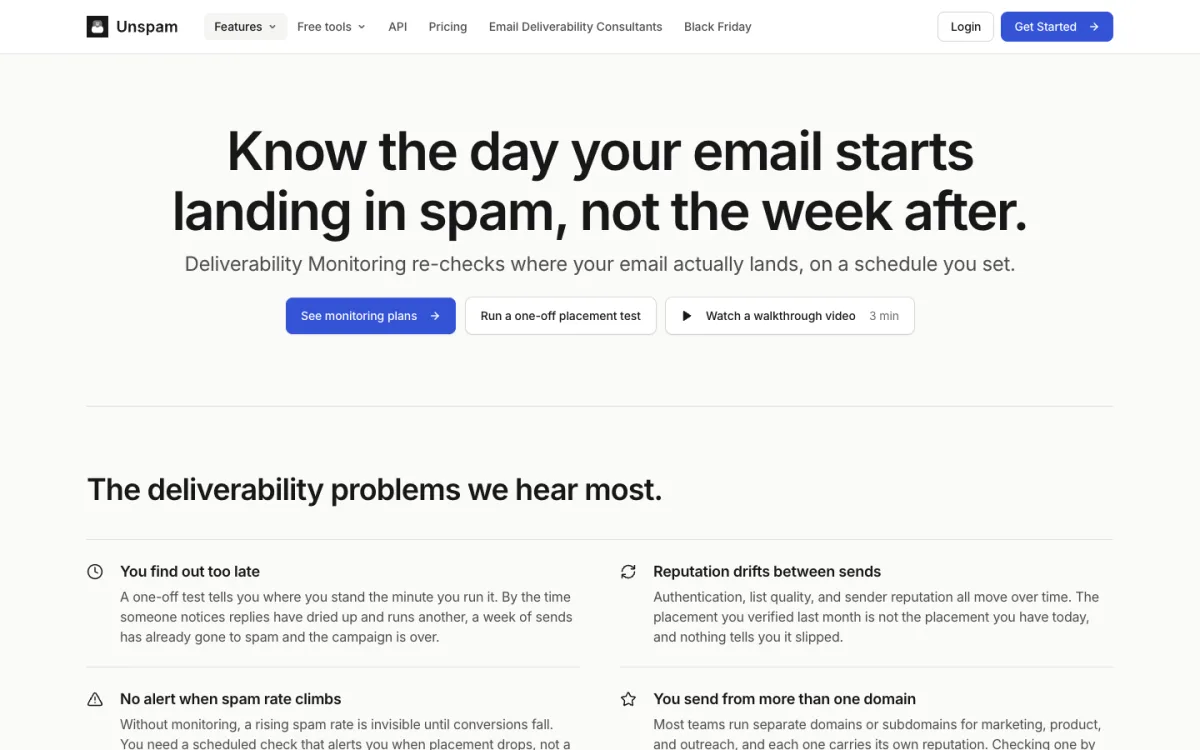
Unspam is our pick because a listing is a symptom. A standalone blacklist monitor tells you that you’re listed. An Unspam scheduled test also shows whether your authentication broke, whether your content changed, and where your email is landing, so the alert points you toward the cause.
How to set up monitoring in Unspam
- Create a free Unspam account at unspam.email.
- Run a baseline spam test. Send a real campaign email to your Unspam test address. You get a spam score with checks for blacklists, SPF, DKIM, DMARC, BIMI, reverse DNS, list-unsubscribe, content and HTML, plus AI-powered analysis and a heatmap showing what triggered filters.
- Run an inbox placement test to see where that email lands at each mailbox provider, with a blacklist check of the sending IP included.
- Schedule it. Turn the test into a scheduled run: daily, weekly, monthly, or on specific weekdays that match your sending calendar.
- Set your alerts. Enter the email addresses that should get alerts. Choose whether to be alerted on every run or only when the score or inbox placement drops below your threshold. Each alert links to the full report. If you want alerts in another tool, poll scheduled test results through the Unspam API from a cron job.
- Check your domain and IP in the free blacklist checker after any infrastructure change, such as a new ESP, a new IP or a new tracking domain. Check Spamhaus and URIBL through the links it gives you.
How to fix emails landing in the spam folder when you’re not blacklisted
If every lookup comes back clean and you’re still landing in spam, the problem is reputation, authentication or content, not a list:
- Run an Unspam spam test and fix every failed authentication check first.
- Check your sending volume. New domains and IPs need a gradual IP warmup, not a full list on day one.
- Remove inactive contacts and keep your complaint rate low.
- Review the content flags and heatmap: link domains, image-to-text ratio, and wording that looks like obvious bulk mail.
- Re-test with an inbox placement test to confirm the fix at Gmail, Outlook, Yahoo and the other providers.
When to bring in a deliverability expert
Some cases are hard to fix on your own:
- Repeat listings: you’ve been delisted and relisted more than once, and you can’t find the cause.
- Shared IP problems: your ESP’s IP range is listed (UCEPROTECT Level 2 or 3, a Spamhaus SBL on the provider), and you need to decide whether to move to a dedicated IP.
- Spamhaus SBL or Microsoft
5.7.511blocks that need a documented fix before your provider or Microsoft will act. - A new IP or domain that you need to warm up without getting listed.
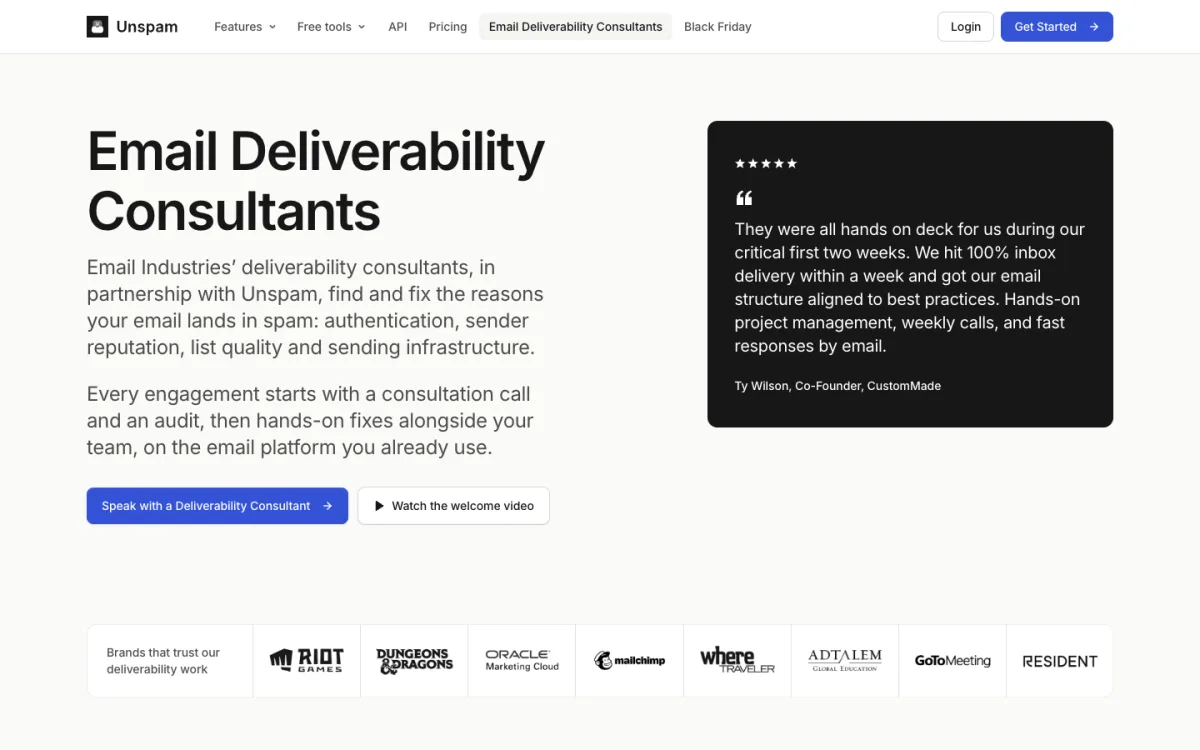
Unspam gives you access to email deliverability consultants who offer audits, troubleshooting, infrastructure guidance, IP warmup support and list hygiene recommendations. Every engagement starts with a consultation call and an audit, followed by hands-on fixes alongside your team, on the email platform you already use.
FAQ
How do I find out which blacklist my domain is on?
Enter your domain in the Unspam blacklist checker, then check Spamhaus DBL at check.spamhaus.org and URIBL through the links the checker gives you. Check your sending IP separately, because IP lists and domain lists are different lists.
How long does Spamhaus take to delist?
It depends on the list. CSS listings normally expire three days after the last detection. XBL listings expire once the activity stops. PBL exclusions take about 15 minutes. Approved DBL removals can take up to 24 hours to reach all systems.
What’s the best tool for monitoring email blacklists?
Use a tool that tells you why you were listed as well as that you were. Unspam combines blacklist checks with authentication, content and inbox placement testing on a schedule you set, emails you when results drop, and gives you access to consultants for repeat problems.
Does paying for express delisting help?
No. Removal from Spamhaus, Microsoft, Barracuda and SpamCop is free. UCEPROTECT’s paid option is optional, because Level 1 listings expire on their own after 7 days.
Next step
Check your IP and domain now with the free Unspam blacklist checker. Then create a free account at unspam.email to test your authentication, content and inbox placement, and schedule ongoing checks so the next listing doesn’t surprise you.