You wrote some CSS, saved it, refreshed the page, and nothing changed. Linking a stylesheet takes one line of HTML, but that line has to point at exactly the right file, and the browser has to accept what it gets back. This guide shows the three ways to add CSS to HTML, explains relative paths with a diagram, and ends with the checklist we use when a stylesheet will not load.
Every example was tested in Chrome. You can download the starter folder (2 KB ZIP) used in the screenshots: an index.html, a page in a subfolder, and a css/style.css file already linked to both.
The One Line You Need
Put this inside the <head> of your HTML file:
<link rel="stylesheet" href="css/style.css">rel="stylesheet"tells the browser what the file is. Without it, or with a typo such asrel="stylesheets", the file is ignored.hrefis the path to your CSS file, worked out from the HTML file’s own location.type="text/css"is optional in HTML5, since CSS is the default.
If you are new to the structure of an HTML file, our HTML guide explains the head, the body and the tags that go in each.
Method 1: An External Stylesheet
An external stylesheet is a separate .css file linked from every page. It is the method to use for almost every website: one file styles the whole site, the browser caches it after the first page, and your HTML stays clean.
<!DOCTYPE html>
<html lang="en">
<head>
  <meta charset="utf-8">
  <meta name="viewport" content="width=device-width, initial-scale=1">
  <title>My site</title>
  <link rel="stylesheet" href="css/style.css">
</head>
<body>
  <h1>Hello, CSS</h1>
</body>
</html>
And in css/style.css, plain CSS with no <style> tags around it:
body {
  font: 18px/1.6 system-ui, sans-serif;
  color: #2b2b2b;
  background: #f7f3ea;
}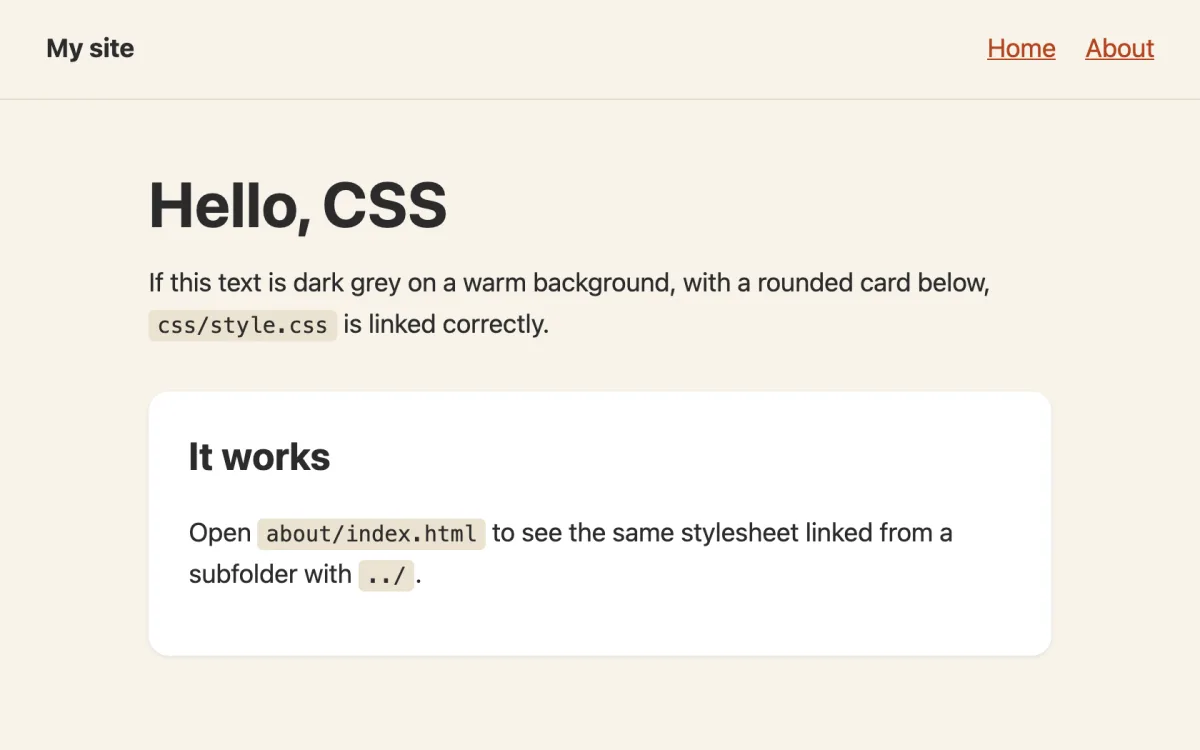
css/style.css linked correctly.Relative vs absolute paths
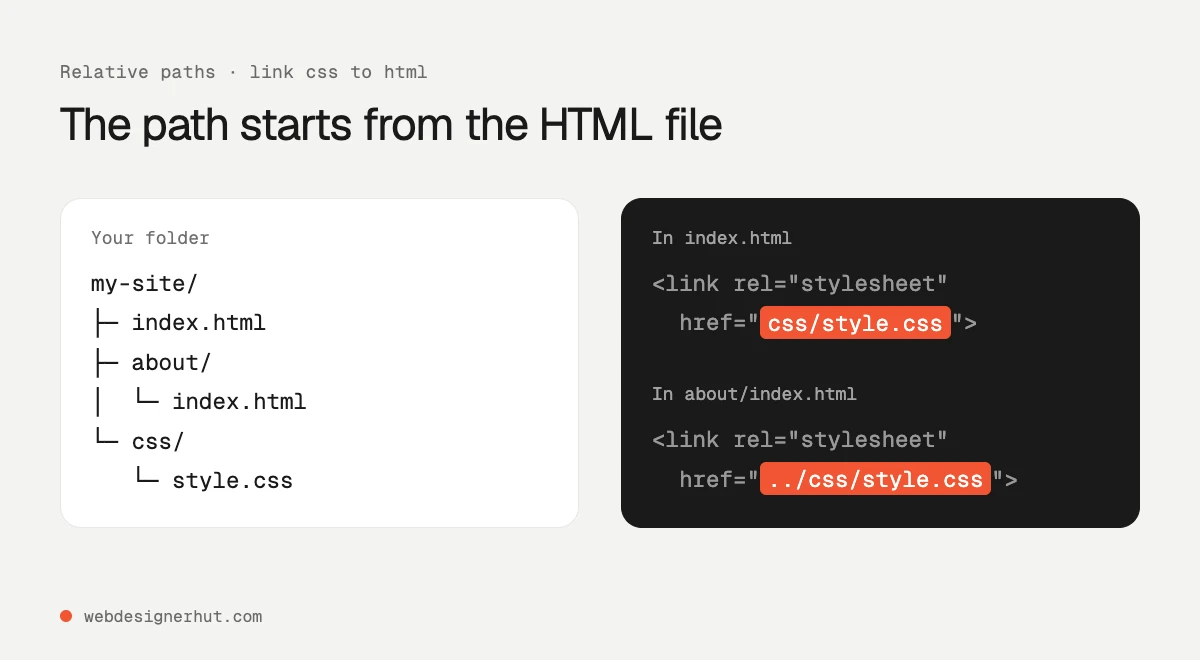
Most “CSS not working” problems are path problems. A path in href can be written three ways:
- Relative to the HTML file:
css/style.cssmeans “a folder called css next to this page.”../css/style.cssmeans “go up one folder first.” This works both on a server and when you double-click the HTML file on your computer. - Root-relative:
/css/style.cssstarts from the top of the website. It is handy on a real server because it works from any page, but it breaks when you open the file directly from your disk, because the browser then starts from the root of your hard drive. - Absolute URL:
https://example.com/css/style.cssis the full address. Use it for stylesheets hosted elsewhere, such as a font service or a CDN.
Method 2: A <style> Block in the Head
You can also write CSS directly in the page, inside a <style> element in the head:
<head>
  <style>
    body { background: #f7f3ea; }
    h1 { font-size: 44px; }
  </style>
</head>
This is called internal or embedded CSS. It suits a single page, a quick test or a demo, and it saves one request. The catch is that the styles only apply to that page, so a second page means copying them. Some performance-focused sites, including this one, inline a small amount of critical CSS this way and generate it with a build script rather than writing it by hand.
Method 3: Inline Styles
Inline CSS goes in a style attribute on a single element:
<p style="color: #b4441f; font-weight: 600;">Sale ends Friday</p>Inline styles beat almost every rule in a stylesheet, which makes them hard to override and hard to maintain, so avoid them on websites. They are fine in two places:
- HTML email. Many email clients ignore or strip
<style>blocks and linked stylesheets, so email templates are usually written with inline styles, or converted to them by a tool before sending. Our guide to optimizing email templates covers this. - Values set by JavaScript, such as the position of an element being dragged.
Load Order and the Cascade
When two rules target the same element with the same specificity, the one that comes later wins. That makes the order of your <link> and <style> tags important:
<head>
  <link rel="stylesheet" href="css/framework.css">  <!-- loaded first -->
  <link rel="stylesheet" href="css/style.css">      <!-- your overrides win -->
</head>
Put frameworks and resets first and your own stylesheet last. Order only breaks ties, though. A more specific selector, such as .card h2, beats a less specific one, such as h2, wherever it appears. An inline style attribute beats both, and !important beats all of them. If a rule seems to be ignored, it is often being overridden rather than not loading.
CSS Not Working? Troubleshooting Checklist
This is what the starter page looks like when the path is wrong. We changed href="css/style.css" to href="style.css", so the browser looked for a file next to the HTML that does not exist:
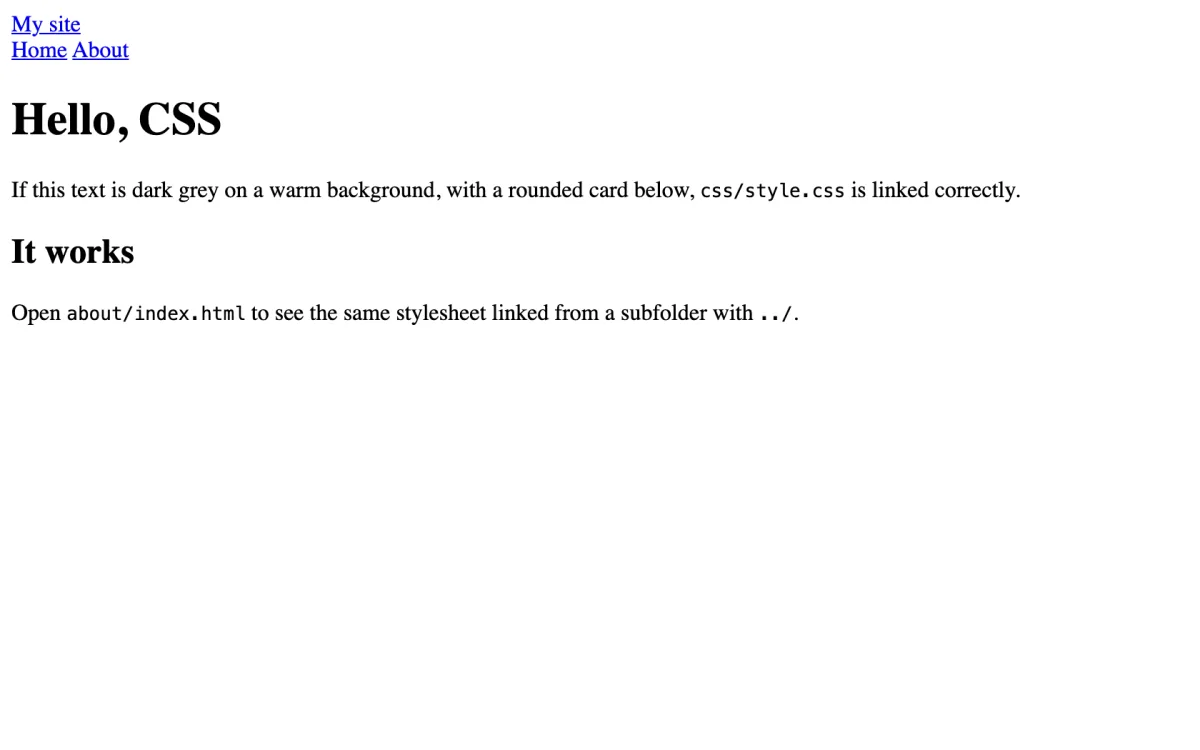
Chrome’s console showed this error for that page:
Failed to load resource: the server responded with a status of 404 (File not found)Work through the list in order:
- Open DevTools and check the Network tab. Press F12, or Cmd+Option+I on a Mac, open Network, filter by CSS and reload. A red 404 next to your file means the path is wrong. Click it to see the full URL the browser tried.
- Check the path against your folders. Is the CSS in a subfolder? Is the HTML page in a subfolder that needs
../? Open the URL from the Network tab directly to confirm. - Check spelling and case.
Style.cssandstyle.cssare different files on most web servers, even if your Mac or Windows PC treats them as the same. A site that works locally can break when uploaded. - Check the
<link>tag itself. It needsrel="stylesheet", a closing quote onhref, and it must sit in the<head>. Make sure the file is not astyle.css.txtin disguise; turn on file extensions in your file manager. - Clear the cache. Browsers keep CSS files to make sites faster, so you may be seeing the old version. Do a hard reload (Cmd+Shift+R on a Mac, Ctrl+F5 on Windows), or tick “Disable cache” in the Network tab while DevTools is open. On a live site, change the URL when the file changes, for example
style.css?v=2. - Check the MIME type. Servers must send CSS with a
Content-Typeoftext/css. When we served the same stylesheet asapplication/octet-stream, Chrome downloaded it but refused to apply it and the page stayed unstyled. Click the file in the Network tab and look at Response Headers. Most servers get this right automatically; a misconfigured server or an unusual file extension does not. - Check that the CSS is valid. A missing closing brace can break every rule after it. Paste the file into the W3C CSS validator, and make sure the
.cssfile does not contain<style>tags. - Check whether the rule is overridden. In DevTools, right-click the element, choose Inspect, and look at the Styles panel. A crossed-out rule loaded fine but lost to a more specific or later rule.
- Check mixed content. An
http://stylesheet on anhttps://page is blocked. Usehttps://or a relative path.
Once the stylesheet loads, our tutorial on building a responsive layout with HTML and CSS is a good next step.
FAQ
Where do I put the link tag in HTML?
Inside the <head>, usually after the <meta> and <title> tags. Stylesheets in the head load before the page is shown, so visitors do not see a flash of unstyled content.
Can I link more than one CSS file?
Yes. Add one <link> tag per file. Later files override earlier ones when rules tie, so put your own styles last.
What is the difference between inline, internal and external CSS?
Inline CSS is a style attribute on one element. Internal CSS is a <style> block in one page’s head. External CSS is a separate .css file linked from any number of pages. External is the default choice for websites.
Should I use @import instead of link?
Usually not. @import inside a CSS file makes the browser download the first file before it discovers the second, which slows the page. Use several <link> tags, or combine the files.
Why does my CSS work locally but not on the server?
The usual causes are letter case in file names, a root-relative path that points somewhere different on the server, a file that was not uploaded, or a cached old version. The Network tab shows which one it is.
Does the CSS file need to be called style.css?
No. Any name ending in .css works, as long as the href matches it exactly.